
One message, composed for your feed
Social Media Flyer Maker
Create your flyer image
History
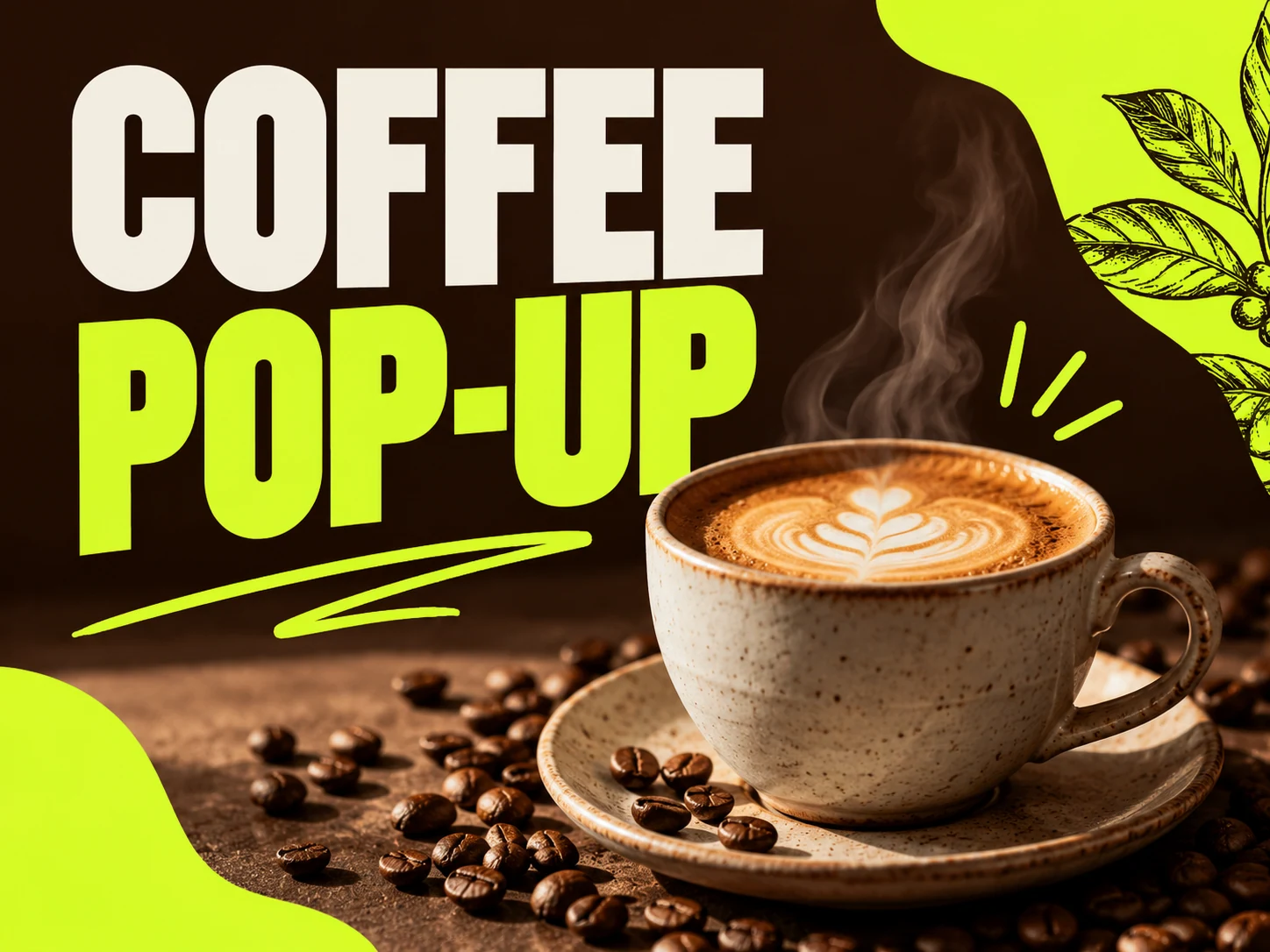
Create a social media flyer image that tells people what is happening and what to do next. Start with a short headline, one visual and the essential details. Generate from text or use a reference photo, then download a version you have checked at phone size.
Create your flyerHow to make your flyer
Choose one purpose
Promote one event, offer or announcement. Decide whether the next action is a visit, a message or a booking. Keep detailed terms in the accompanying post caption.
Write a compact brief
Replace the example headline, time and location in the prompt. Describe the subject, colors and mood separately from the exact text you want to appear.
Compose for the destination
Choose an aspect ratio supported by your model. Request a fresh composition for a square post or vertical Story instead of relying on a crop of small lettering.
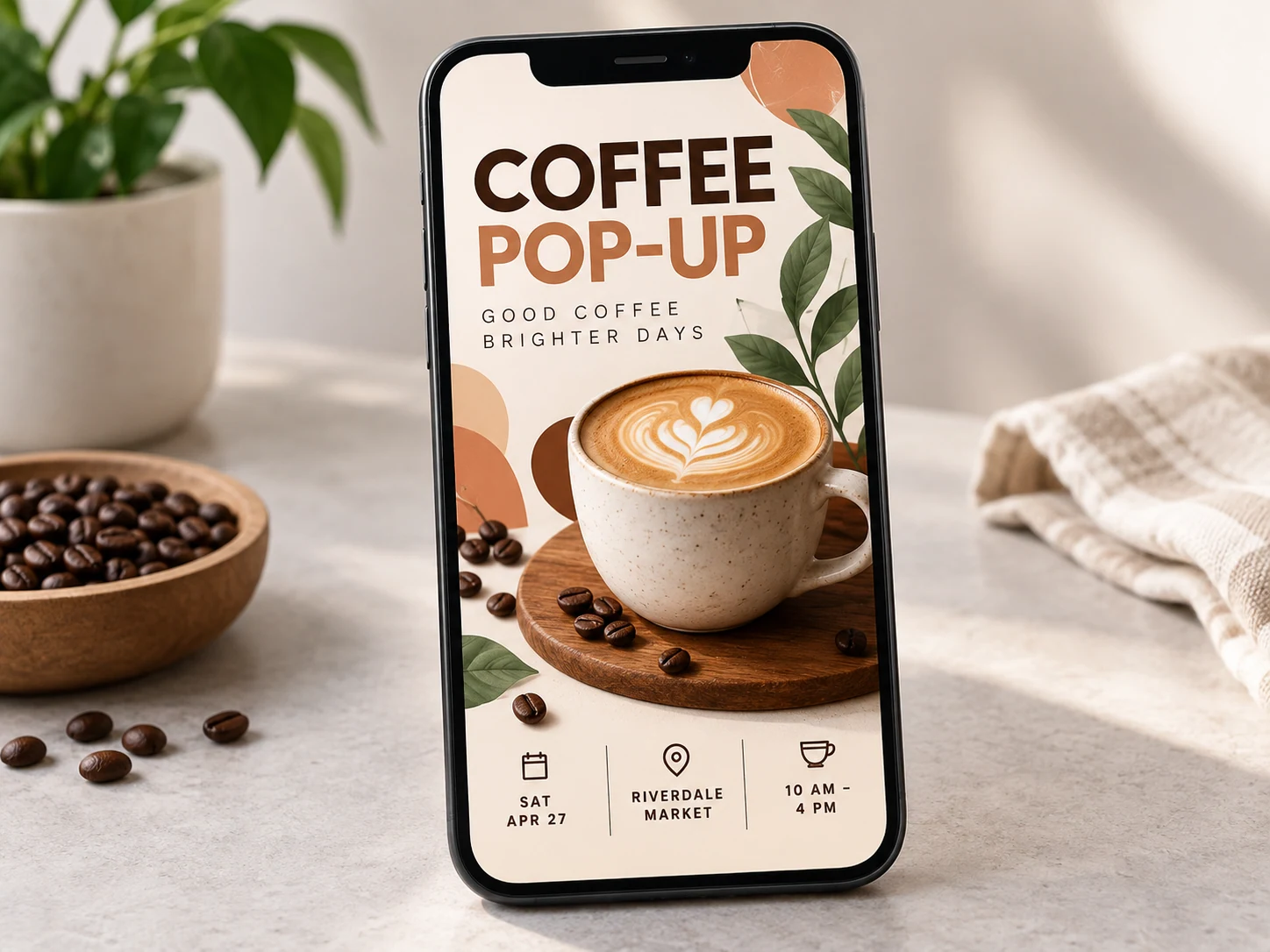
Read it at phone size
Review spelling, numbers, contrast and margins. Preview it in the destination app before sharing; interface overlays and crops can change the visible area.
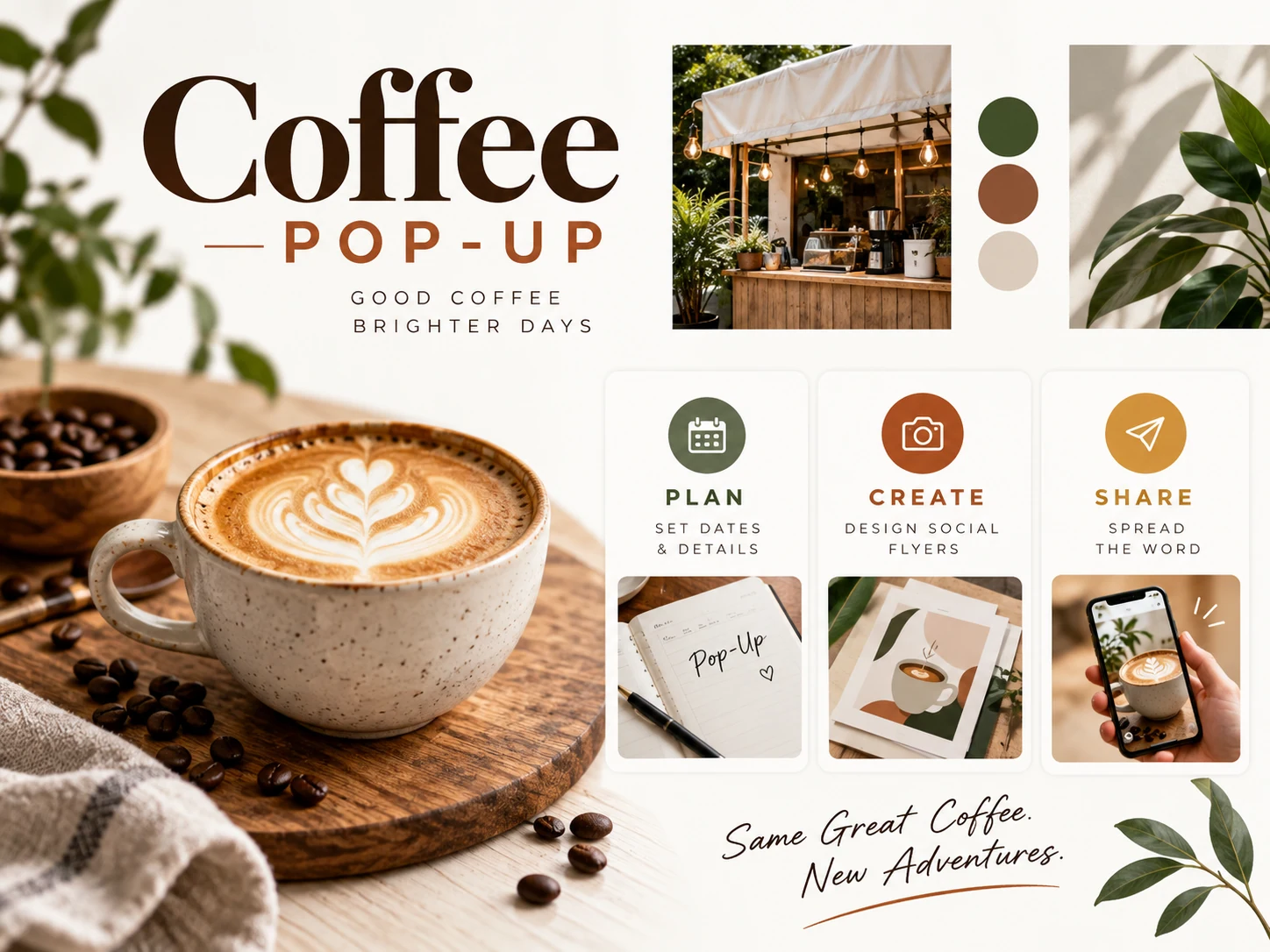
Build the reading order before adding decoration
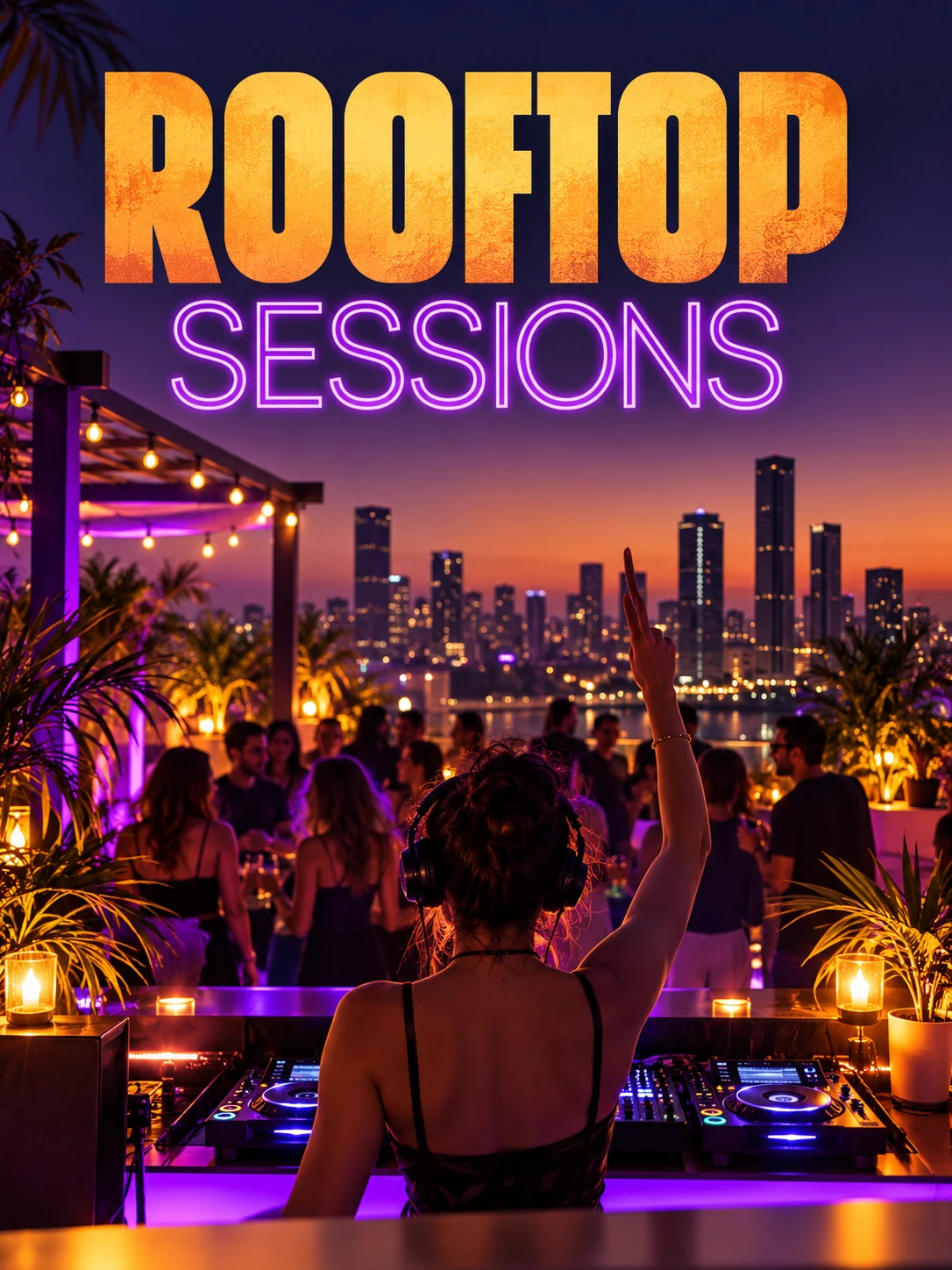
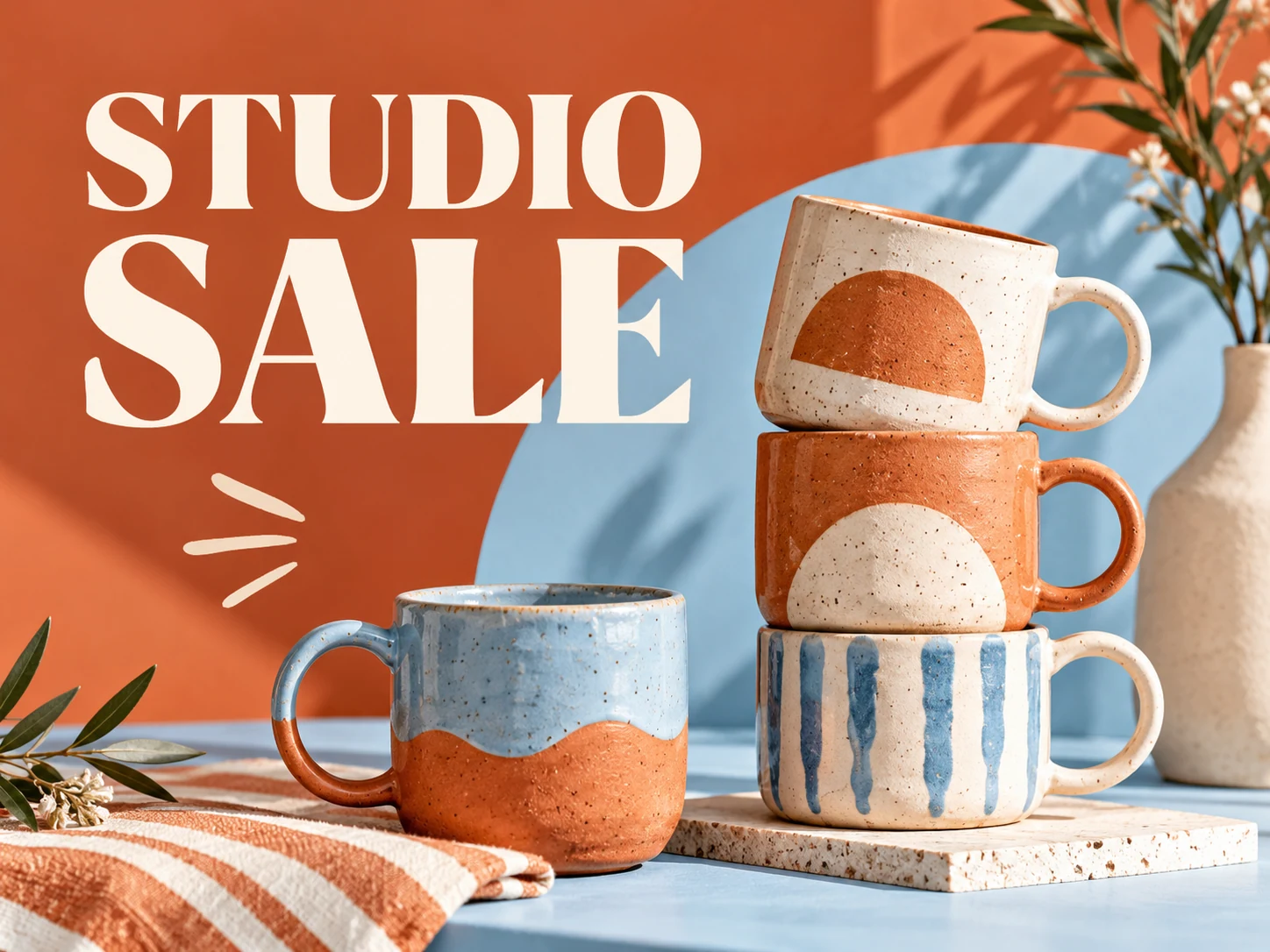
Give the headline the strongest emphasis, place the practical details underneath and keep the response instruction easy to find. Ask for a quiet background behind small text. A short message with generous spacing is easier to check than a dense poster squeezed into a phone screen.
Start with this prompt
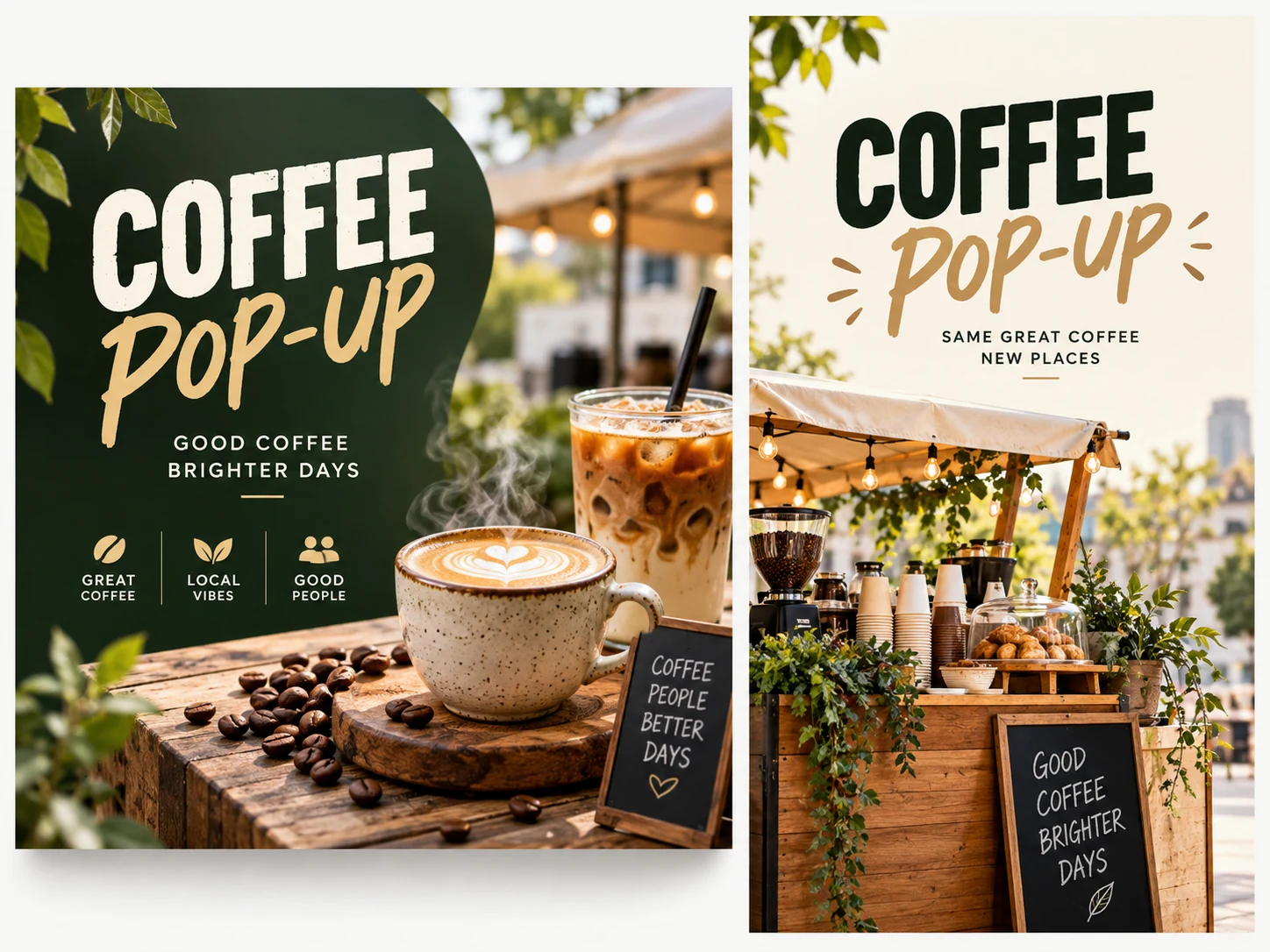
Replace the sample details with your own. Edit the prompt in the generator and choose the actual aspect ratio in the settings.
Create a social media flyer for a neighborhood coffee pop-up. Exact text: "COFFEE ON THE CORNER", "SATURDAY 10 AM", "18 OAK STREET". One beautifully photographed coffee cup, warm cream and espresso palette, bold readable headline, clear spacing between the time and address, generous margins, no extra words, no logos. Compose the image for the selected aspect ratio.
Choose a direction for your campaign
Local pop-up
Show one inviting product or location, opening time and a concise address. Let the post caption carry the longer story.
Community announcement
Lead with the activity and who it is for. Place the date and sign-up instruction where they can be read without zooming.
New product introduction
Use a clear product reference when fidelity matters. Check shape, color and packaging in the generated result before publishing.
Questions before you generate
Does it publish to my social accounts?
No. Download the finished image and upload it yourself. This page does not connect accounts, schedule posts or publish on your behalf.
Can I reuse a design for different formats?
Create another version with the same visual brief and a different supported ratio. Review each layout separately because generation can change text and placement.
Do I need to upload an image?
Text to Image needs only a prompt. Choose Image to Image to add a reference through the upload control. Accepted formats and reference limits depend on the selected model.
What does generation cost?
Check your account balance and the live credit quote for the selected model and settings before generating. Free access or credits depend on your current account offer.
When can I download the image?
Processing time varies by model and queue. Follow the task in History, open the completed image, then use the available download action.
Can I edit individual text layers?
The result is an image, not an editable design file. Check every letter, date and number. Adjust your prompt or use an available Image to Image model for another version.
Continue your campaign
aisocialmediapostgenerators.com · Updated
What's new on this page
- — Added an image generator, visual examples and guidance for this creative task.